 Stock Trading
Now trade in ₹9 Per Order or ₹ 999 Per Month Plans.
Stock Trading
Now trade in ₹9 Per Order or ₹ 999 Per Month Plans.
 Future & Options
Access F&O contracts with advanced tools for hedging and speculation.
Future & Options
Access F&O contracts with advanced tools for hedging and speculation.
 Currency Trading
Trade in major currency pairs and manage forex exposure efficiently.
Currency Trading
Trade in major currency pairs and manage forex exposure efficiently.
 Commodity Trading
Diversify Trading with MCX & NCDEX by Trading in Gold, Silver, Base Metals, Energy, and Agri
Products.
Commodity Trading
Diversify Trading with MCX & NCDEX by Trading in Gold, Silver, Base Metals, Energy, and Agri
Products.
 Margin Trading Funding
Boost your buying power with upto 5X, Buy now Pay Later
Margin Trading Funding
Boost your buying power with upto 5X, Buy now Pay Later
 Algo Trading
Back test, Paper Trade your logic & Automate your strategies with low-latency APIs.
Algo Trading
Back test, Paper Trade your logic & Automate your strategies with low-latency APIs.
 Trading View
Leverage Trading View charts and indicators integrated into your trading platform.
Trading View
Leverage Trading View charts and indicators integrated into your trading platform.
 Advanced Options Trading
Execute multi-leg option strategies with precision and insights.
Advanced Options Trading
Execute multi-leg option strategies with precision and insights.
 Stock Lending & Borrowing
Earn passive income by lending stocks securely through SLB.
Stock Lending & Borrowing
Earn passive income by lending stocks securely through SLB.
 Foreign Portfolio Investment
Enable NRIs and FPIs to invest in Indian markets with ease and compliance.
Foreign Portfolio Investment
Enable NRIs and FPIs to invest in Indian markets with ease and compliance.
 IPO
Invest in upcoming IPOs online with real-time tracking and instant allotment updates.
IPO
Invest in upcoming IPOs online with real-time tracking and instant allotment updates.
 Direct Mutual Funds
0% Commissions by investing in more than +3500 Direct Mutual Fund Scheme.
Direct Mutual Funds
0% Commissions by investing in more than +3500 Direct Mutual Fund Scheme.
 Corporate FDRs
Earn fixed returns with low-risk investments in high-rated corporate fixed deposits.
Corporate FDRs
Earn fixed returns with low-risk investments in high-rated corporate fixed deposits.
 Stocks SIPs
Build long-term wealth with systematic investment plans in top-performing stocks.
Stocks SIPs
Build long-term wealth with systematic investment plans in top-performing stocks.
 Bonds & NCDs
Access secure, fixed-income investments through government and corporate bond offerings.
Bonds & NCDs
Access secure, fixed-income investments through government and corporate bond offerings.
 Depository Services
Safely hold and manage your securities with seamless Demat and DP services with CDSL.
Depository Services
Safely hold and manage your securities with seamless Demat and DP services with CDSL.
 RMoney Quick
Fast, hassle-free trading in one tap.
RMoney Quick
Fast, hassle-free trading in one tap.
 RMoney Rocket
Power-packed platform for active traders.
RMoney Rocket
Power-packed platform for active traders.
 Rocket API
Lightning-fast trading API for developers advanced algo traders.
Rocket API
Lightning-fast trading API for developers advanced algo traders.
 XTS Algo
Smart algo trading software for precision trades.
XTS Algo
Smart algo trading software for precision trades.
 Journey
Tracing our growth and milestones over time.
Journey
Tracing our growth and milestones over time.
 Mission & Vision
Guided by purpose, driven by long-term vision.
Mission & Vision
Guided by purpose, driven by long-term vision.
 Why RMoney Platform
Smart, reliable platform for all investors' needs.
Why RMoney Platform
Smart, reliable platform for all investors' needs.
 Management
Experienced leadership driving strategic financial excellence.
Management
Experienced leadership driving strategic financial excellence.
 Credentials
Certified expertise with trusted industry recognition.
Credentials
Certified expertise with trusted industry recognition.
 Press Release
Latest company news, updates, and announcements.
Press Release
Latest company news, updates, and announcements.
 Testimonials
Real client stories sharing their success journeys.
Testimonials
Real client stories sharing their success journeys.
 7 Reasons to Invest
Top benefits that make investing with us smart.
7 Reasons to Invest
Top benefits that make investing with us smart.
 SEBI Registered Research
Trusted insights backed by SEBI-compliant research.
SEBI Registered Research
Trusted insights backed by SEBI-compliant research.
 Our Technology
Advanced tools enabling efficient online trading.
Our Technology
Advanced tools enabling efficient online trading.
 Blog
Stay updated with expert insights, market trends, and trading strategies through our
informative blogs.
Blog
Stay updated with expert insights, market trends, and trading strategies through our
informative blogs.
 Video
Learn visually with easy-to-understand videos covering trading concepts, tips, and market
analysis.
Video
Learn visually with easy-to-understand videos covering trading concepts, tips, and market
analysis.
 Podcast
Tune in to insightful discussions and expert opinions anytime, anywhere.
Podcast
Tune in to insightful discussions and expert opinions anytime, anywhere.
 Telegram Community
Be part of an active trader community sharing ideas, updates, and market opportunities in
real-time.
Telegram Community
Be part of an active trader community sharing ideas, updates, and market opportunities in
real-time.
 WhatsApp Updates
Get instant alerts, key market updates, and important notifications directly on WhatsApp.
WhatsApp Updates
Get instant alerts, key market updates, and important notifications directly on WhatsApp.
 Financial Calculators
Plan your trades, margins, and returns efficiently with our smart calculation tools.
Financial Calculators
Plan your trades, margins, and returns efficiently with our smart calculation tools.
 Marketplace
Discover curated tools, strategies, and services designed to enhance your trading
experience.
Marketplace
Discover curated tools, strategies, and services designed to enhance your trading
experience.
 Daily Research Reports
Stay ahead with timely market insights, trends, and actionable analysis delivered every day.
Daily Research Reports
Stay ahead with timely market insights, trends, and actionable analysis delivered every day.
 Dedicated Advisory
Get personalized guidance and expert recommendations tailored to your trading goals.
Dedicated Advisory
Get personalized guidance and expert recommendations tailored to your trading goals.
 Research Team
Backed by experienced analysts delivering data-driven insights and market expertise.
Research Team
Backed by experienced analysts delivering data-driven insights and market expertise.
 Research Reports
Access in-depth reports covering stocks, commodities, and market movements to support
informed decisions.
Research Reports
Access in-depth reports covering stocks, commodities, and market movements to support
informed decisions.
 Feedback
Share your suggestions or concerns to help us improve your experience.
Feedback
Share your suggestions or concerns to help us improve your experience.
 Downloads
Access important forms, software, and documents in one place.
Downloads
Access important forms, software, and documents in one place.
 Locate Us
Find the nearest RMoney branch or service center quickly.
Locate Us
Find the nearest RMoney branch or service center quickly.
 Escalation Matrix
Resolve issues faster with our structured support escalation process.
Escalation Matrix
Resolve issues faster with our structured support escalation process.
 Back Office
Log in to view trade reports, ledger, and portfolio statements anytime.
Back Office
Log in to view trade reports, ledger, and portfolio statements anytime.
 Account Modification
Update personal or bank details linked to your trading account.
Account Modification
Update personal or bank details linked to your trading account.
 Fund Transfer
Transfer funds instantly online with quick limit updation to your trading account.
Fund Transfer
Transfer funds instantly online with quick limit updation to your trading account.
 Bank Details
View our registered bank account details for seamless transactions by NEFT, RTGS or IMPS.
Bank Details
View our registered bank account details for seamless transactions by NEFT, RTGS or IMPS.
 RMoney Rocket Web Version
Experience powerful web-based trading with advanced tools for algo traders.
RMoney Rocket Web Version
Experience powerful web-based trading with advanced tools for algo traders.
 Refer & Earn
Invite friends and earn rewards every time they trade with us.
Refer & Earn
Invite friends and earn rewards every time they trade with us.


How to Check Order and Trade Log in RMoney?
By: Akriti Tomar | Date : Dec 3, 25
Keeping track of your order and trade activity is an essential part of managing your trading performance. The RMoney Rocket App provides an easy way to review all your placed, executed, cancelled, or rejected orders in one place through the Order Log and Trade Log sections.
Whether you want to verify an executed trade or check the status of a pending order, these logs offer complete visibility and transparency into your trading activity.
Step-by-Step Guide to Access Order and Trade Logs
Follow these quick steps to view your trading history in the RMoney Rocket App:
- Login to your RMoney Rocket App.
- Tap on the hamburger menu (☰) at the top-left corner.
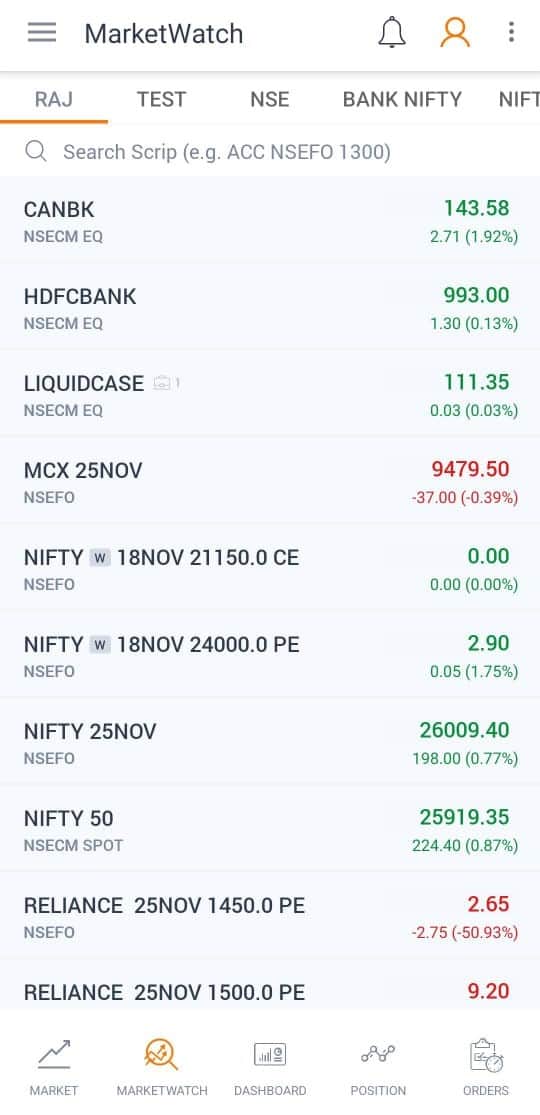
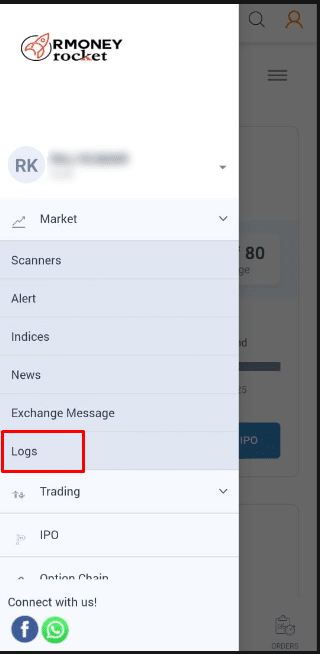
- Select Market from the main menu.
- Tap on Logs.
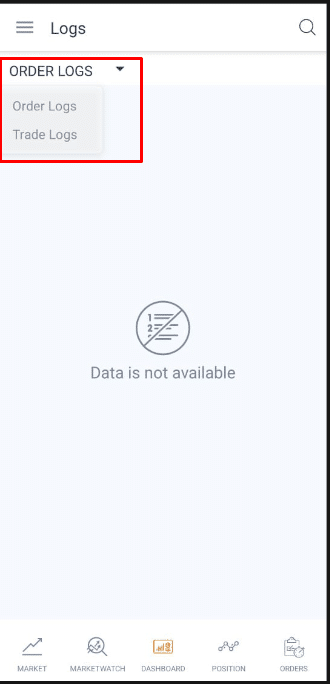
- You’ll see two tabs:
-
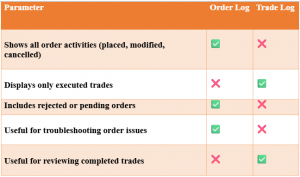
- Order Logs – View all orders that were placed, modified, or cancelled.
- Trade Logs – View all successfully executed trades.
Understanding the Order Log
The Order Log helps you review every action related to your orders, giving you complete clarity on your order flow.
You can check details such as:
- Order ID and Status – Whether your order is open, executed, cancelled, or rejected.
- Quantity and Price – The number of shares and the price you placed.
- Exchange Time and Product Type – Time of order placement and whether it was CNC, MIS, or MTF.
- Rejection Reasons – For any rejected orders, tap on the entry to view the exact reason provided by the exchange.
This feature is especially useful when analyzing rejected or pending orders and verifying if your modifications or cancellations were successful.
Understanding the Trade Log
The Trade Log gives you a detailed summary of all executed trades. It shows the final transactions that took place on the exchange after your orders were matched.
Key details include:
- Trade ID and Timestamp – Helps you track when a trade was executed.
- Executed Quantity and Price – Displays the exact fill details.
- Instrument, Exchange, and Order Type (Buy/Sell) – Helps you verify all your trade entries.
This section is particularly useful for reconciling trades, calculating profit and loss, or cross-checking execution accuracy.
Order Log vs. Trade Log — What’s the Difference?
Pro Tips
- Always check the correct segment (Equity, F&O, or MTF) before reviewing logs.
- Use timestamps to analyze execution delays.
- In case of any mismatched or missing entries, note the Order ID or Trade ID and share it with the RMoney Support team for quick assistance.
Need Help?
For any assistance, contact RMoney at 0562-4266600 / 0562-7188900 or email askus@rmoneyindia.com
Kickstart your Investment and Trading journey effortlessly with RMoney. Open your Demat Account today and take the first step towards smarter investing and trading!
Table of content
Categories
Open Demat Account 



Related Posts
-

How Can I Avoid Auction?
According to the exchange rules, the auction amount is always debited to the auction seller....
-

Do Alphamatters come with a lock-in period?
No, Alphamatters do not have any lock-in period. This ensures that you can exit out...
-

Understanding Different Algo Trading Frequencies — HFT, MFT & LFT
Introduction: The Rise of Frequency-Based Algorithmic Strategies Over the past decade, algorithmic trading has become...
-

How to Withdraw Funds from the RMoney Tradion App?
Withdrawing funds from your RMoney Tradion account is quick and easy. Follow the steps below...





Filing Complaints on SCORES (SEBI) – Easy & Quick
- Register on SCORES Portal (SEBI)
- Mandatory details for filing complaints on SCORES:
- Name, PAN, Address, Mobile Number, E-mail ID
- Benefits:
- Effective Communication
- Speedy redressal of the grieva`nces


IT'S TIME TO HAVE SOME FUN!
Your family deserves this time more than we do.
Share happiness with your family today & come back soon. We will be right here.
Investment to ek bahana hai,
humein to khushiyon ko badhana hai.
E-mail
askus@rmoneyindia.com
Customer Care
+91-9568654321



Trade Endlessly with
RMoney
Deep Discount Brokerage Plan
At 999/Monthly
- Dedicated round the clock Advisory Support
- High performance in depth research
- Save more than ₹10,000 brokerage Per Month
- Ultra fast trading app